 Studio Session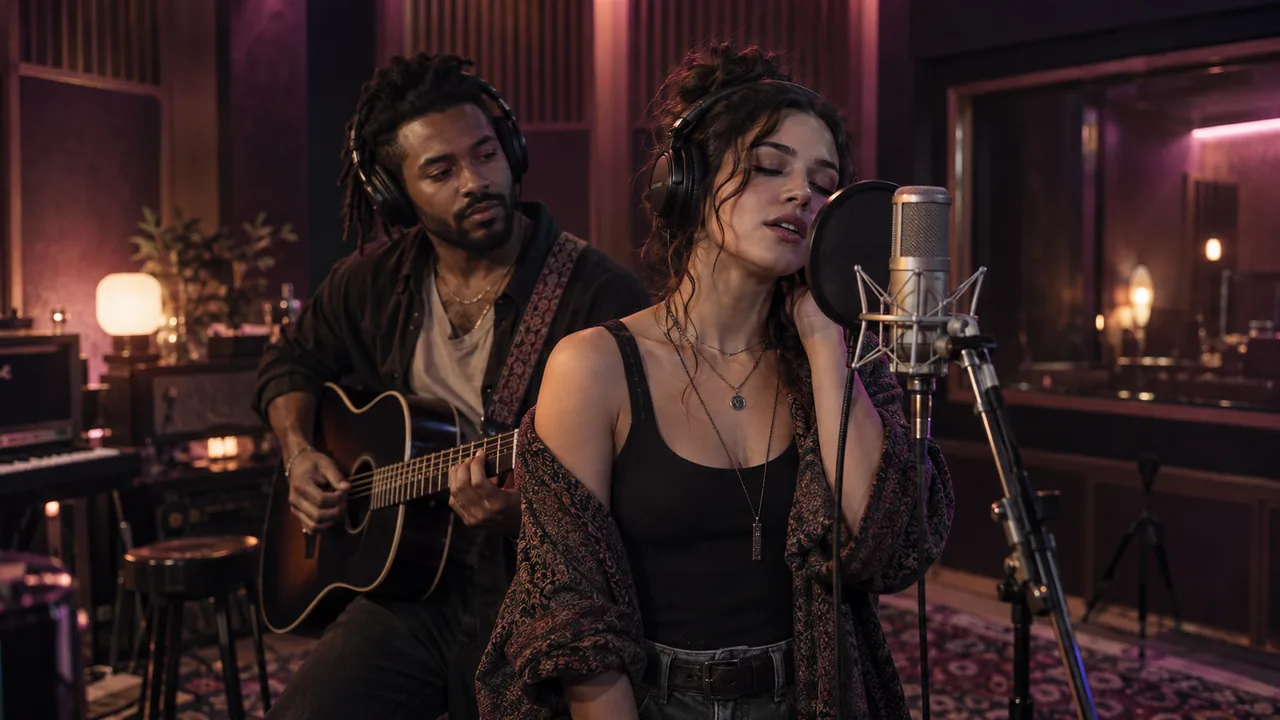
Choose a reference for this scene
Studio Session places two performers in a recording-room visual, with acoustic walls, a microphone and a cooler light accented by magenta. The emphasis is concentration and close framing. A visible microphone sets the scene, but the clip is not a recording of a real studio performance.
Both faces fully visible
Use one clear individual photo for each performer. A real microphone can hide the mouth and chin; choose a clean reference without an object blocking either face.
Clear hands if hands appear
Include relaxed, readable hands rather than overlapping fingers or a prop held across a face. The scene may introduce microphone-related motion.
Enough room around the shoulders
A shared upper-body view gives room for the generated microphone and changes of framing. Avoid cutting the two people into one cramped facial crop.
Natural color and detail
A source with realistic skin and distinct clothing is more useful than an image with a heavy purple filter already baked in.
Photos to avoid
- A pop filter or microphone hiding most of a face in the reference.
- Interlaced hands or props crossing from one person into the other.
- A very dark venue shot with colored light clipping both faces.
From source portraits to a reviewed clip
Prepare two permitted portraits
Use one person in each of two separate portraits. Obtain permission from every identifiable person to appear in a synthetic video. Choose a JPG, PNG or WebP up to 4 MB for each portrait, and inspect facial detail before upload.
Check the local preview
Choose each required file in its own studio slot. Selection creates local previews; it does not submit the images to storage or the video provider. Replace or remove a portrait if its subject, crop or file is wrong.
Choose the frame
Use 9:16 or 3:4 for portrait video, 1:1 for a square post, or 16:9, 4:3 or 21:9 for a wider scene. Changing the aspect ratio does not change the credit cost for the same duration.
Choose your video length
This scene defaults to 10 seconds in 9:16. Your account stores credits; package cards show the video time they cover. A 15-second clip uses more credits than a 10-second clip. Unused credits stay in your balance, and you need enough for at least 10 seconds to start a new video.
Confirm permission, then generate
Use Generate only when the live service is available. The flow connects your account or guest session, uploads the required portraits in slot order and sends the scene request. Complete verification if it is required.
Recover the same task when uncertain
If the response is slow or unclear, use Check progress for the saved task instead of repeatedly starting new requests. Return with the same browser session when possible. An unknown response does not establish that the job failed.
Play the whole result
When the task completes, play the full video and inspect the scene-specific checks below. Save the result while its link is available. Starting another video uses additional video seconds.
What to check in the completed video
Inspect microphone placement
Make sure equipment does not pass through a face, float unexpectedly or change size during the clip.
Watch all visible fingers
If the video includes a hand on or near equipment, review the contact and finger count during motion.
Check light and facial identity
Compare both faces under the cool and magenta light, particularly when the shot moves from the pair to a close view.
When the result misses the intention
Equipment hides the expression
Start a new render from an unobstructed source instead of one already blocked by a microphone. The studio has no prop-position editing control.
Fingers look tangled around a prop
Use a calmer reference with visible, relaxed hands or hands outside the frame. Review any generated handling before using the result.
Colored light overwhelms the face
Choose a neutral, clearly exposed source. Avoid stacking a heavy source filter on top of the intended colored studio lighting.
Questions before you start
Do we need to hold a microphone in the source photo?
No. Two clear individual portraits without anything blocking the faces are suitable. The fixed recipe requests microphone context in the generated scene.
Does choosing a file upload it immediately?
No. File selection creates a local preview. A live Generate request uploads the source to configured storage and sends its reference to the video service after permission confirmation.
Should I generate again if the request looks stuck?
Check the saved task first. A slow or uncertain response can still belong to an active job. Starting another video uses additional video seconds.
MAKE YOUR SCENE